
Upload prize images directly from your device
The most-requested feature is finally here. Upload a prize image straight from your laptop or phone — or just paste a screenshot. No public image host, no copyright headaches, and the image stays private to your draw and is auto-deleted when the draw is archived.
If you’ve ever set up a draw and stalled at the “prize image URL” field, this one is for you.
For years, Lucky Draw Bot has required a publicly accessible image URL for the prize picture. That made sense technically, but it created two very real problems for the people actually trying to run a draw:
- You had to host the image somewhere public first. Find an image host, upload, make it actually public, verify it’s reachable from the outside, copy the link back. For a one-minute “let’s draw a Surface Pro for the team” moment, that’s far too many steps — and a lot of people simply gave up at this point.
- The “just paste a public image URL” workaround invited copyright trouble. Hot-linking a Google Images result or someone’s blog photo is convenient until it isn’t. It’s not really yours to use, the link can break, and you can end up with someone else’s watermark in your draw.
This has been the single most requested feature in our feedback inbox for a long time. Today, it’s live — and it solves both problems at once.
What’s new
You can now attach a prize image straight from your device — laptop, desktop, or phone — directly in the draw setup card. Two flavors:
- Pick a file from your device (PNG/JPEG, up to 1024×1024).
- Paste a screenshot. If you just took a screenshot or copied an image to the clipboard, paste it in directly. The bot will upload it to a container reserved for the current draw, fill the image URL back into the form, and you’re done.
No public URL needed. No third-party image host. No “is this link actually accessible from the outside?” guessing. No copyright gray area from hot-linking someone else’s image.
Here’s how the full flow looks now.
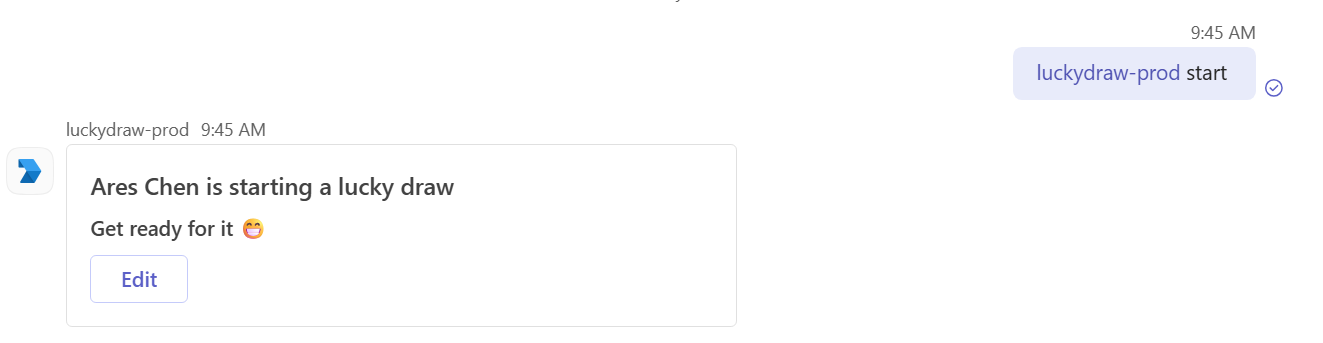
1. Start a draw as usual
Mention the bot in any Teams channel to kick things off.
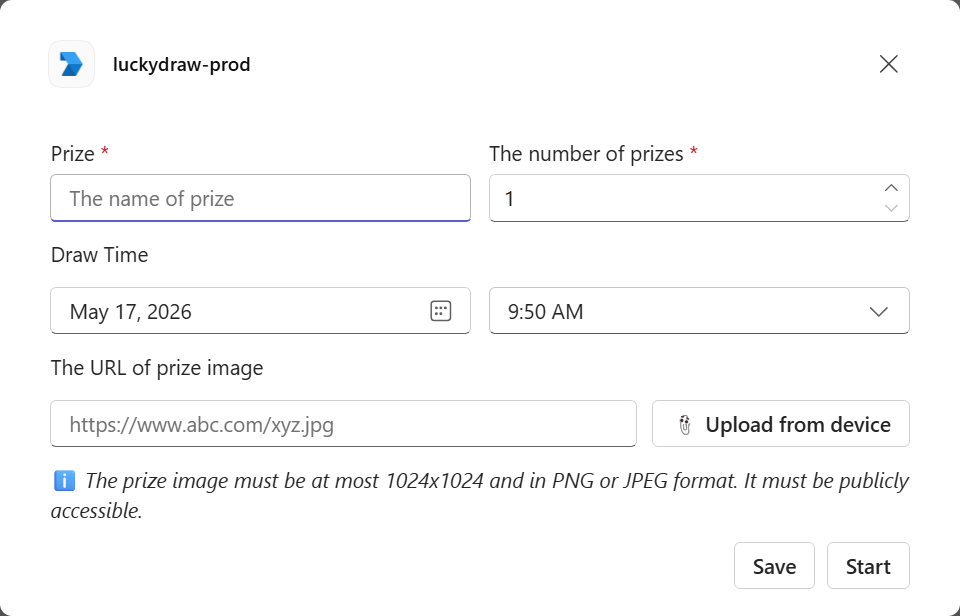
2. Open the edit form
You’ll see the familiar setup card — prize, number of prizes, draw time, and the image field. Notice the new Upload from device button right next to the image URL input.
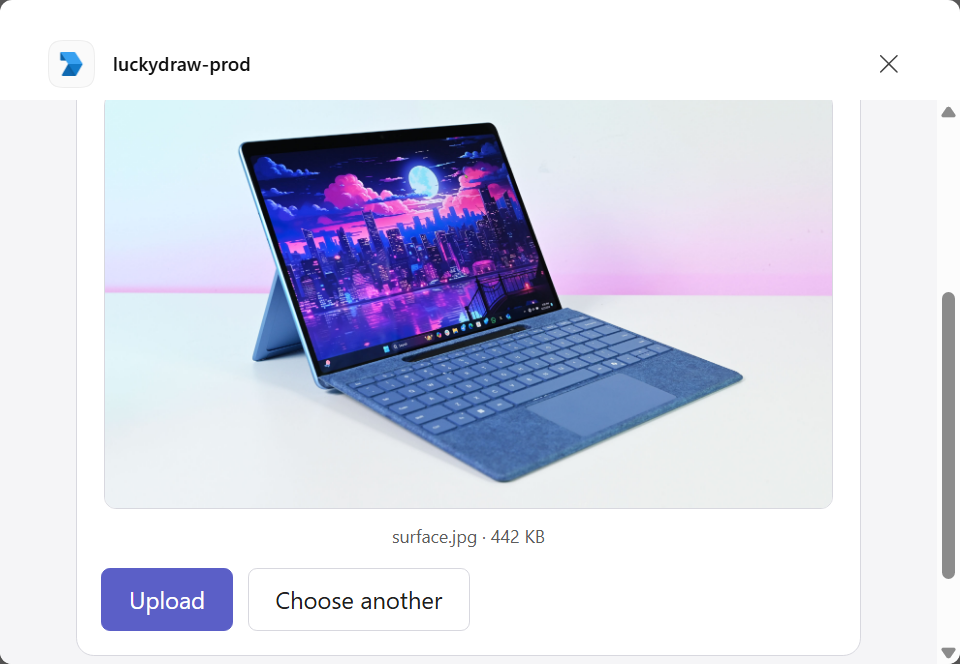
3. Pick a file — or paste a screenshot
Click Upload from device, choose a PNG or JPEG (up to 1024×1024), and you’ll get a quick preview. You can also just paste a screenshot from the clipboard at this step — no need to save it as a file first. Happy with the preview? Hit Upload. Want a different one? Choose another.
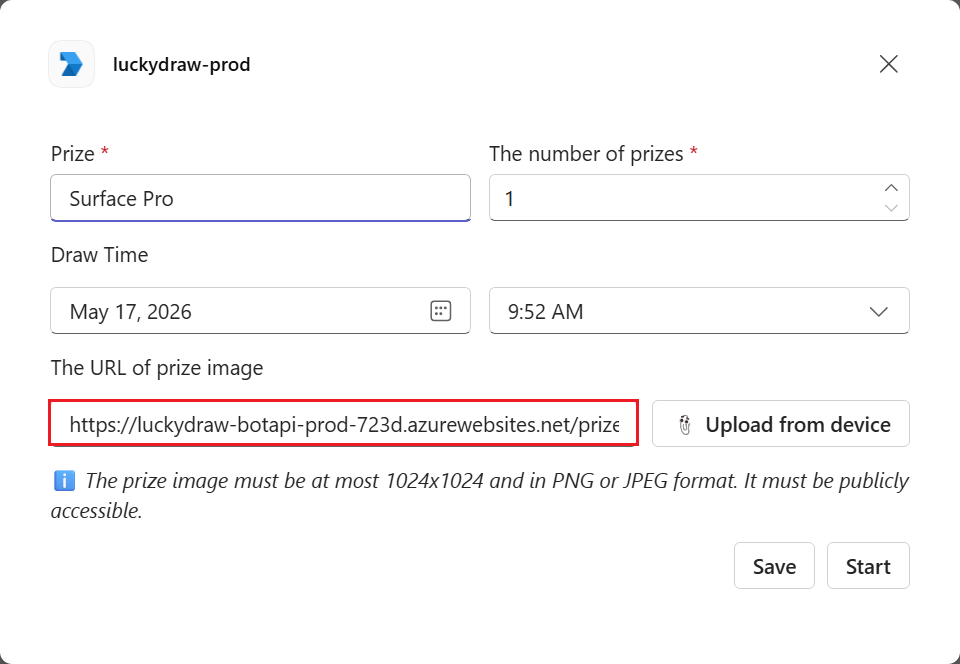
4. The image URL is filled in for you
Once the upload completes, the bot stores the image in a container scoped to this specific draw and drops the resulting URL right back into the form for you. You don’t have to copy, paste, or host anything yourself.
5. Start the draw — the image just works
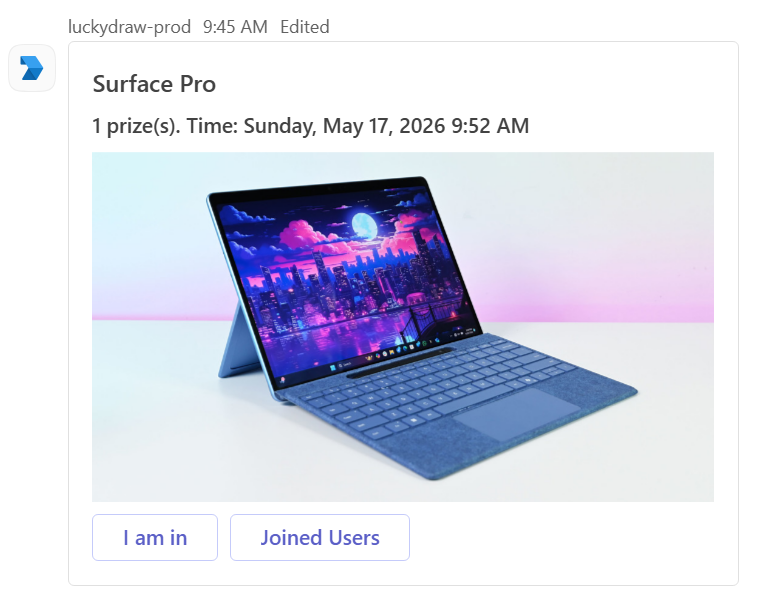
Hit Start, and the prize card shows up in the channel with your image rendered exactly as expected. Teammates tap I am in and you’re off.
Privacy: only this draw can see the image
Short answer: the image is private to your draw, and we delete it when the draw is archived.
The longer answer:
- Uploaded images are stored in a container that is scoped to the current draw. They are only served as part of that draw’s prize card — to the people who can already see the draw in Teams.
- They are not placed in any public gallery, not listed anywhere, and not reachable by anyone browsing the bot’s domain or trying to guess URLs.
- Other organizations, other channels, and other users cannot enumerate or access your uploaded images.
- When the draw is archived, the associated image is automatically deleted along with it. No lingering files, no shadow copies sitting around forever — once the draw’s lifecycle ends, the image is gone.
In other words: it behaves the way you’d hope a private upload would behave. The fact that the prize image appears inside an adaptive card doesn’t mean the underlying file is exposed beyond that draw — it isn’t. And once you don’t need it anymore, neither do we.
If you still prefer to host images yourself (corporate CDN, brand assets you legally own, etc.), the original URL field is unchanged and works exactly as before. Upload-from-device is an addition, not a replacement.
Why this took a while
The original design deliberately leaned on customers’ own image hosting so that we could keep the bot fully free and avoid running a storage and bandwidth bill on top of an already-free product. Over time, two things changed:
- The community was very clear that “find a public URL first” was the #1 blocker for casual, spur-of-the-moment draws — and that the public-URL workaround was pushing people into copyright gray areas they didn’t want to be in.
- We worked out a hosting setup, with per-draw scoped storage and automatic cleanup on archive, that lets us offer private image uploads without changing the “Lucky Draw Bot is free” promise.
So here we are.
Try it now
The new Upload from device button is rolling out to all tenants. Open any channel where Lucky Draw Bot is installed, start a draw, and look for the button next to the image URL field. If you don’t see it yet, give it a few minutes — Teams takes a moment to refresh the card.
As always, if you bump into anything weird, or you have ideas for the next most-wanted feature, drop a note to [email protected].
Happy drawing.
— Ares Chen